WiFi Connected but No Internet? How to Fix It
When WiFi is connected but there is no internet, the link between your device and the router is fine, but the path from the router to the internet is broken. Fix it by restarting your device, power-cycling the modem and router, checking for an internet provider outage, and renewing your IP and DNS settings. Most cases are solved in minutes; persistent ones point to a router, ISP, or configuration problem.
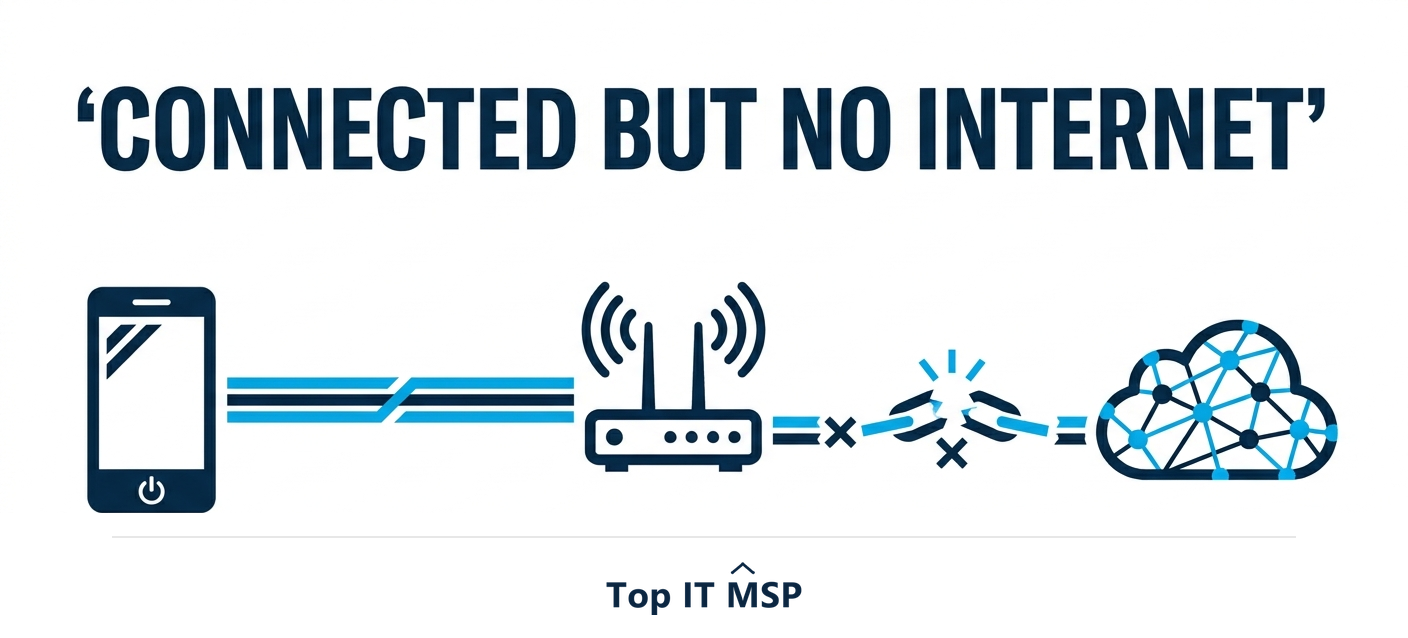
- Connected but no internet means your device reached the router, but the router cannot reach the internet.
- Start simple: restart your device, then power-cycle the modem and router, and check for an ISP outage.
- If one device works and another does not, the problem is that device, not the network.
- Renewing the IP address and flushing or changing DNS resolves many stubborn cases.
- Frequent or business-wide outages signal a deeper issue worth professional attention, because downtime is costly.
What "connected but no internet" actually means
It is one of the most confusing technology messages: your device shows it is connected to WiFi, yet nothing loads. The reason is that there are two separate links involved. The first is between your device and your WiFi router, and that one is working, which is why it says connected. The second is between your router and the internet, through your internet service provider (ISP), and that is the link that has broken. Once you understand that the problem lives somewhere between your router and the wider internet, the fixes below make sense and follow a logical order.
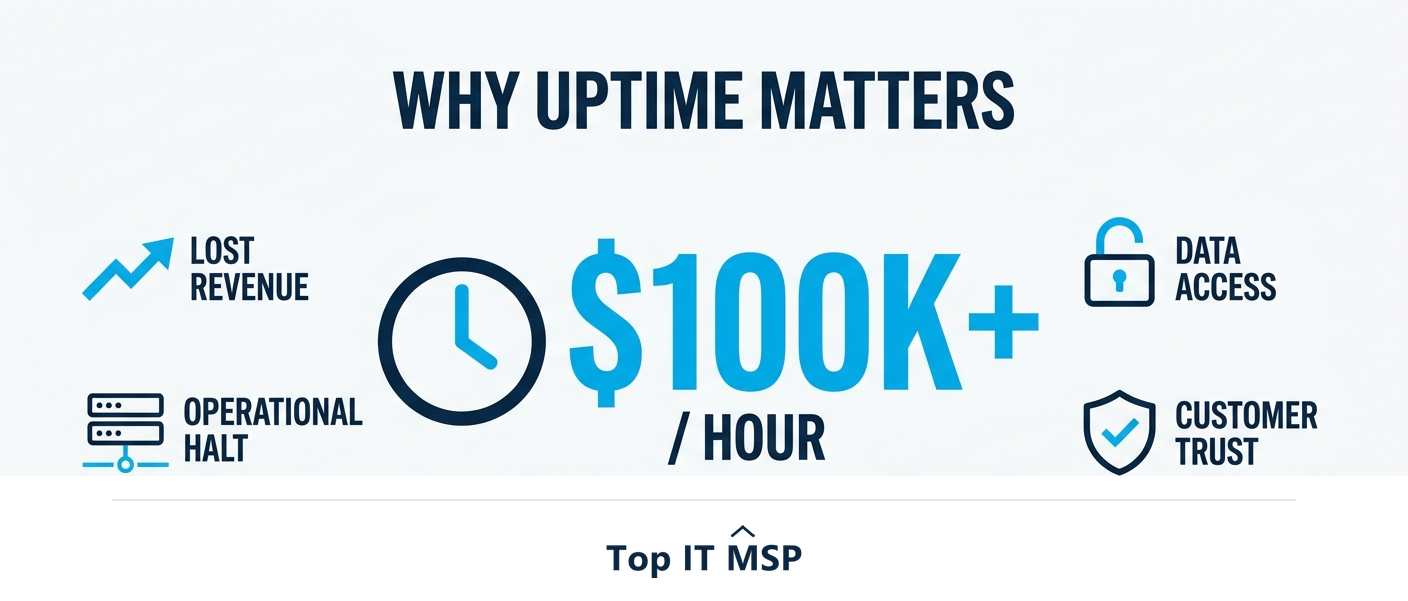
The good news is that most cases are minor and solved in a few minutes. This guide walks through the fixes from simplest to most technical, explains how to tell whether the problem is one device or your whole network, and covers when a recurring issue points to something a professional should look at. For a business, connectivity is not a minor annoyance: an hour of downtime costs most organizations more than $100,000. This guide pairs with our network support services overview.
Quick fixes to try first
Work through these in order. Each takes a minute or two, and one of them resolves the large majority of cases:
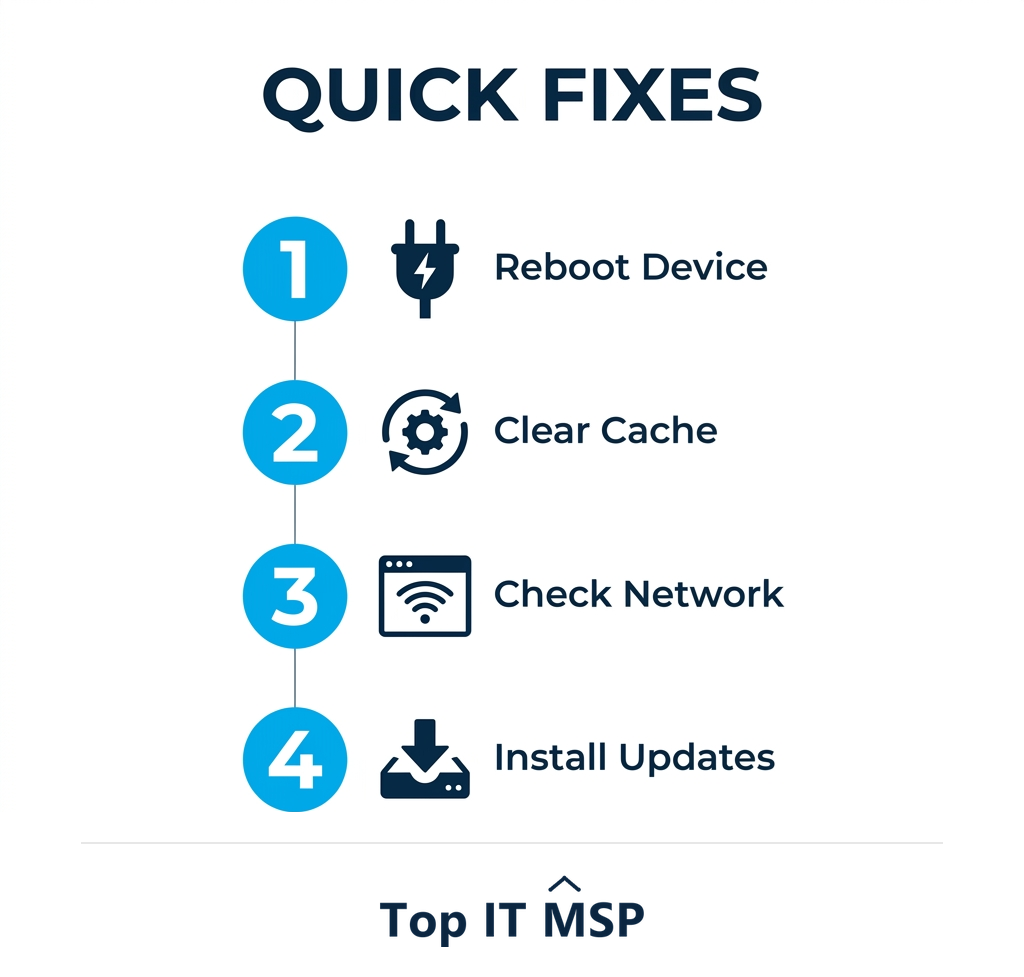
- Restart your device. Fully power off and on the computer or phone, not just sleep it. This clears temporary network glitches and is the single most effective first step.
- Power-cycle your modem and router. Unplug both, wait 30 seconds, plug the modem back in first, let it fully come online, then the router. This re-establishes the connection to your ISP and fixes a huge share of cases.
- Check for an ISP outage. Use mobile data to check your provider's status page or social media. If the ISP is down, no fix on your end will help; you simply wait.
- Forget the network and rejoin. On your device, forget the WiFi network, then reconnect and re-enter the password to clear a corrupted connection profile.
- Try a different device. See whether other devices have internet, which tells you where the problem lives.
Is it one device or your whole network?
This single question saves the most time, so answer it early. Check whether other devices on the same WiFi have internet:
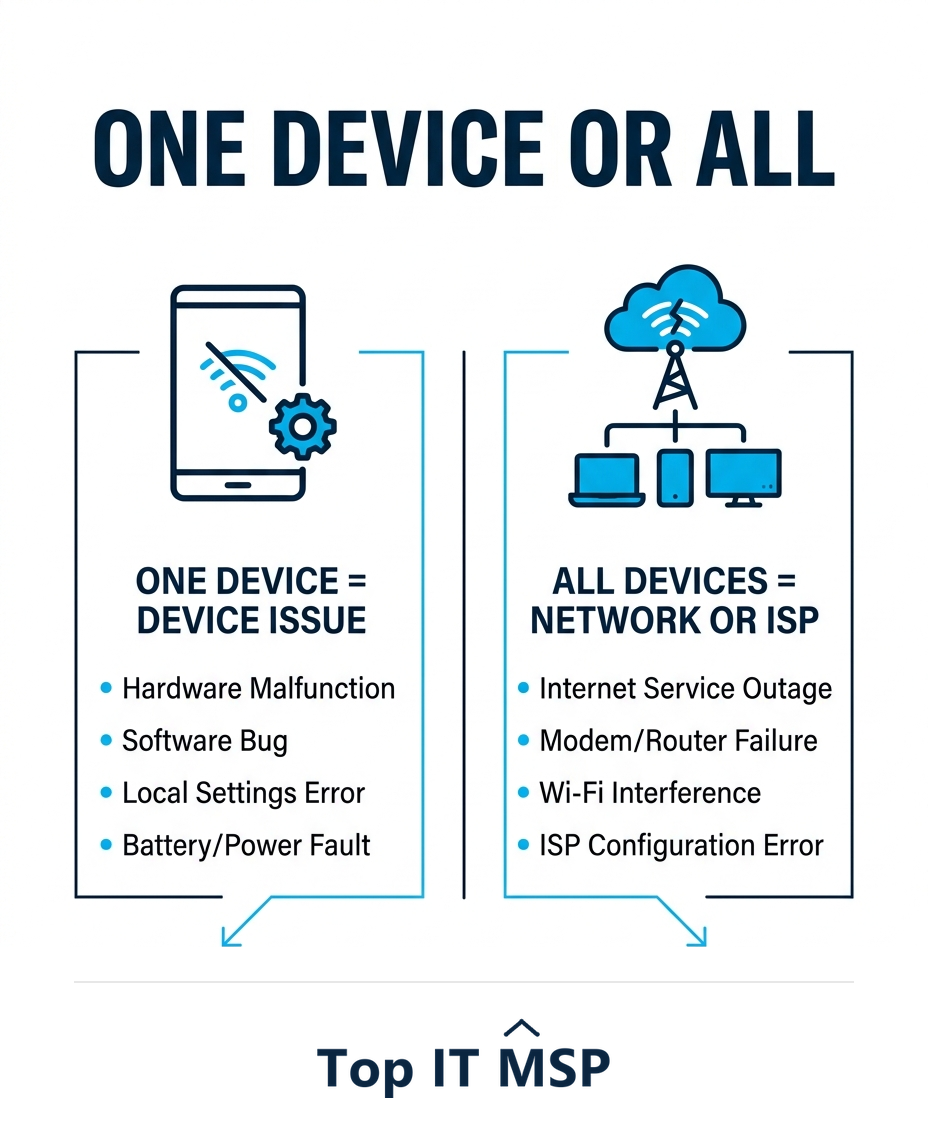
- Only one device has no internet. The problem is that device, not the network. Focus on its settings: restart it, update its network drivers, disable any VPN, turn off airplane mode, and check that its date and time are correct, since a wrong clock can break secure connections.
- Every device has no internet. The problem is the network or the ISP. Focus on the modem, router, cabling, and your provider rather than any single device.
Deeper fixes when the basics do not work
If a restart and power-cycle did not solve it, the cause is usually in your device's network configuration or your router. These steps go a level deeper to troubleshoot a stubborn wireless connection and get back to a stable link:
- Renew your IP address. Release and renew the device's IP (on Windows, ipconfig /release then ipconfig /renew; on Mac, renew the DHCP lease). A bad IP assignment is a common cause.
- Flush or change your DNS. Flush the DNS cache, and if it persists, switch to a public DNS such as 1.1.1.1 or 8.8.8.8. DNS failures often look exactly like no internet, because names cannot be turned into addresses.
- Run the built-in network troubleshooter. On Windows, the network troubleshooter can reset adapters and fix common faults automatically.
- Disable VPN and security software temporarily. A misbehaving VPN or firewall can block traffic; turn it off briefly to test.
- Check the router admin page. Log in to the router to confirm it shows a healthy connection to the ISP. If it does not, the issue is between the router and your provider.
- Update or reset the router. Apply any firmware update, and as a last resort, factory-reset the router and reconfigure it.
Why this keeps happening
An occasional glitch is normal, but if connected-but-no-internet keeps recurring, something underlying is wrong. Common culprits include aging or overloaded routers, an ISP line problem, IP address conflicts from too many devices, interference or weak signal, or a configuration issue that resets itself. Repeated outages are worth diagnosing properly rather than restarting the router every day, because in a business the lost time adds up fast. Reliable connectivity is part of why managed network support exists, and the market reflects how much businesses value dependable IT: the managed services market was worth about $330 billion in 2024 and is projected to reach about $879 billion over the next decade.
When to call a professional
For a home setup, the steps above resolve almost everything. For a business, the calculus is different. Frequent or site-wide outages, problems that return after every fix, or connectivity that fails under load point to infrastructure that needs professional attention, and the cost of ignoring it is real given how expensive downtime is. Building and maintaining reliable, secure networks in-house is also hard amid a global shortfall of about 4.8 million cybersecurity and IT professionals, and it matters more every year as operations move to the cloud, in a market where public cloud spending is forecast to top $723 billion in 2025, up from about $595.7 billion in 2024. A managed provider monitors your connection, catches problems before staff notice, and keeps the business online.
Persistent connectivity problems can also mask security issues, and with the average data breach costing $4.88 million and taking about 258 days to identify and contain, an unreliable network is not something to leave unexamined. If WiFi trouble keeps disrupting your business, a managed IT provider can diagnose and fix the root cause. To start from a vetted, merit-ranked list, browse providers by city in the Top IT MSP directory.
Frequently asked questions
Why does my WiFi say connected but no internet?
Because the link between your device and the router is working (so it shows connected), but the link between the router and the internet, through your internet provider, is broken. The problem lives somewhere between your router and the wider internet, which is why restarting the modem and router and checking for an ISP outage usually fixes it.
How do I fix WiFi connected but no internet?
Work from simplest to most technical: restart your device, power-cycle the modem and router (modem first), check for an ISP outage, and forget and rejoin the network. If that fails, renew your IP address, flush or change your DNS, run the network troubleshooter, disable any VPN, and check or reset the router.
Is the problem my device or my network?
Check whether other devices on the same WiFi have internet. If only one device has no internet, the problem is that device, so focus on its settings, drivers, VPN, and clock. If every device has no internet, the problem is the network or the ISP, so focus on the modem, router, cabling, and your provider.
How does changing DNS fix no internet?
DNS turns website names into the numeric addresses devices use. When DNS fails, pages will not load even though you are connected, which looks exactly like no internet. Flushing the DNS cache, or switching to a reliable public DNS such as 1.1.1.1 or 8.8.8.8, resolves many of these stubborn cases.
Why does my WiFi keep dropping the internet?
Recurring connected-but-no-internet problems usually point to an underlying cause: an aging or overloaded router, an ISP line issue, IP address conflicts, interference or weak signal, or a configuration that resets. Repeated outages are worth diagnosing properly rather than restarting daily, especially for a business where downtime is costly.
When should a business call an IT professional about WiFi problems?
Call a professional when outages are frequent or site-wide, when problems return after every fix, or when connectivity fails under load, as these point to infrastructure issues. Because an hour of downtime costs most organizations more than $100,000, a managed provider that monitors and maintains the network usually pays for itself.
Related reading
Stop fighting flaky connectivity
Top IT MSP is the independent directory of vetted managed IT providers across North America. Compare merit-ranked firms in your city that design, monitor, and fix business networks. No pay-to-play.
Top IT MSP is an independent directory that connects you with vetted managed IT providers. Browse the directory city by city:
- Managed IT Services in New York
- Managed IT Services in Los Angeles
- Managed IT Services in Chicago
- Managed IT Services in Houston
- Managed IT Services in Lafayette
- Managed IT Services in Las Vegas
- Managed IT Services in Lexington
- Managed IT Services in Lincoln
- Managed IT Services in Louisville
- Managed IT Services in Madison