How to Recover an Unsaved Word Document
To recover an unsaved Word document, reopen Word and check the Document Recovery pane, then use File > Info > Manage Document > Recover Unsaved Documents, search for AutoRecover (.asd) and temporary (.tmp) files, and check OneDrive or SharePoint version history if the file was saved there. To never face this again, turn on AutoSave to the cloud and back up your files.
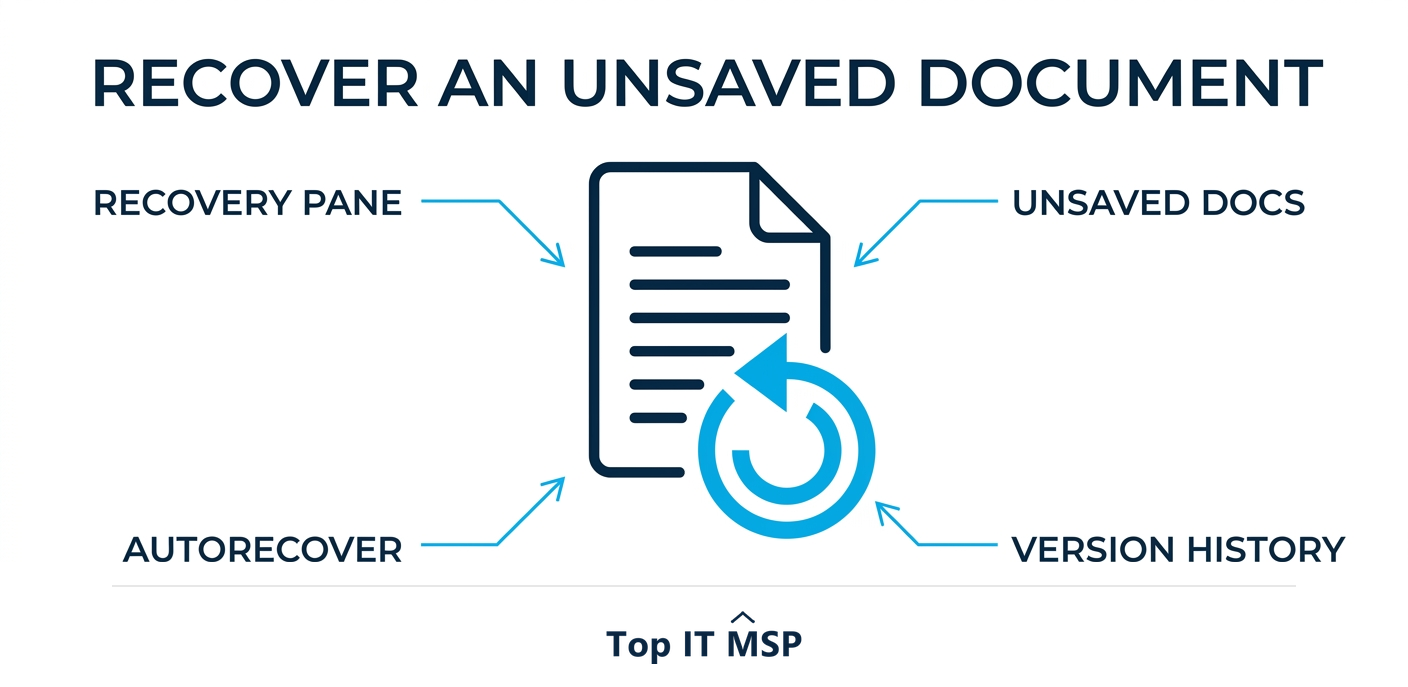
- Reopen Word first: it often shows a Document Recovery pane with your unsaved work.
- Use File > Info > Manage Document > Recover Unsaved Documents to find autosaved drafts.
- Search for AutoRecover (.asd) and temporary (.tmp) files in Word's recovery folders.
- If the file lived in OneDrive or SharePoint, restore it from cloud version history.
- Prevent recurrence: turn on AutoSave to the cloud and ensure files are backed up.
First, do not panic
Losing a Word document you spent hours on, because the app crashed, the power went out, or you clicked Don't Save, is gut-wrenching, but the work is often still recoverable. Modern Word saves more behind the scenes than most people realize, through features like AutoRecover and, if you use Microsoft 365, AutoSave to the cloud. This guide walks through the recovery options in order, from the quickest to the most thorough, and then shows you how to make sure you never lose work this way again. Work through the steps before assuming the document is gone, because in most cases at least a recent version survives somewhere.
While this is a personal frustration for an individual, lost work is a real business cost too. Multiply a few lost hours across a team and a year and it adds up, and at the extreme, data loss events tie directly to downtime that costs most organizations more than $100,000 an hour. The same habits that recover one document, autosave and backup, are what protect a business from far worse data loss. This guide pairs with our backup and disaster recovery services overview.
Step 1: Reopen Word and check the recovery pane
The simplest fix comes first. After a crash, reopen Word, and it will often automatically display a Document Recovery pane on the left, listing versions of files it salvaged. Open the most recent one, confirm it has your work, and save it immediately with a new name. This recovers the majority of crash-related losses with no further effort, so always start here before trying anything more involved.
Step 2: Use Recover Unsaved Documents
If the recovery pane did not appear or did not have your file, Word keeps a dedicated store of unsaved drafts. In Word, go to File, then Info, then Manage Document (or Manage Workbook in Excel), and choose Recover Unsaved Documents. This opens a folder of autosaved drafts of files you never manually saved. Look for one matching your document by name or time, open it, and save it properly. This is the single most useful recovery feature for the classic clicked Don't Save mistake.

Step 3: Search for AutoRecover and temp files
Word's AutoRecover feature periodically saves a backup copy with an .asd extension, and the app also leaves temporary files with a .tmp extension. If the built-in options came up empty, you can search your computer for these directly. Search the file system for files ending in .asd and .tmp, sorted by date, and look for ones created around when you lost your work. AutoRecover files can be opened in Word; temp files sometimes need to be renamed. This deeper search occasionally recovers work the menus miss, especially after a hard crash.
Step 4: Check cloud version history
If your document was stored in OneDrive or SharePoint, you have an extra safety net: version history. The cloud keeps previous versions of the file, so even if your latest changes seem lost or the file was overwritten, you can open the file's version history and restore an earlier version. This also rescues you from a different disaster, accidentally deleting content and saving, or a file becoming corrupted. For files saved to the cloud, version history is often the fastest and most reliable recovery route of all, which is one of the quiet advantages of working in the cloud, in a market where public cloud spending is forecast to top $723 billion in 2025, up from about $595.7 billion in 2024.
Step 5: Check the Recycle Bin and backups
If the file existed but was deleted rather than unsaved, check your Recycle Bin or Trash first, where a deleted file can usually be restored in a click. Beyond that, if your business backs up its files, a recent backup will contain a copy of the document, and you can restore it from there. This is exactly what backups are for, and it is the difference between an annoyance and a catastrophe when the lost data is more than a single document. If you are not sure whether your files are backed up, that uncertainty is itself a problem worth fixing.
How to never lose work again
Recovery is good, but prevention is better. A few habits make lost work a thing of the past:

- Turn on AutoSave. With Microsoft 365 and files saved to OneDrive or SharePoint, AutoSave saves continuously as you type, so there is almost nothing to lose.
- Save to the cloud. Storing files in OneDrive or SharePoint gives you version history and protects against a dead laptop.
- Keep AutoRecover frequent. Set AutoRecover to save every few minutes in Word's options.
- Save early and often. The old habit still works: name and save a new document right away, and press save regularly.
- Back up your data. A proper backup protects not just one document but everything, against deletion, hardware failure, and ransomware.
The bigger lesson: protect your data
A lost Word document is a small, recoverable version of a problem every business faces at scale: data loss. The same forces, crashes, mistakes, hardware failure, and increasingly ransomware, can wipe out far more than a single file, and the consequences for a business are severe. The average data breach costs $4.88 million and takes about 258 days to identify and contain, reported cybercrime losses topped $12.5 billion in a single year, and much of the damage in an attack is lost or encrypted data. The humble habits in this guide, autosave, cloud storage, and backups, are the personal-scale version of the data protection every organization needs.

For a business, that means a real backup and disaster recovery plan: automated backups, cloud copies, and tested restores, so a crash, a deletion, or an attack never costs you critical data. Building this well takes expertise that is scarce amid a global shortfall of about 4.8 million cybersecurity and IT professionals, which is why many businesses rely on a managed provider, part of why the managed services market is projected to grow from about $330 billion in 2024 to about $879 billion over the next decade.
When to get professional help
For a single document, the steps above will usually do the job. But if your business regularly loses work, if files are going missing or getting corrupted, or if you have no reliable backup in place, those are signs of a deeper problem worth fixing properly. A managed IT provider can set up automatic saving, cloud storage, and a tested backup and recovery system, so document loss stops being a recurring drain and your critical data is genuinely protected. To find one, browse vetted, merit-ranked firms by city in the Top IT MSP directory, where ranking is earned on rating and verified data.
Frequently asked questions
How do I recover an unsaved Word document?
First reopen Word and check the Document Recovery pane it often shows after a crash. If that fails, go to File > Info > Manage Document > Recover Unsaved Documents to find autosaved drafts. You can also search for AutoRecover (.asd) and temporary (.tmp) files, and if the file was in OneDrive or SharePoint, restore it from version history.
Where does Word store unsaved documents?
Word keeps autosaved drafts of files you never manually saved in a dedicated location you reach through File > Info > Manage Document > Recover Unsaved Documents. It also saves AutoRecover backups with an .asd extension and leaves temporary .tmp files, which you can search for on your computer by date if the menus do not show your file.
What is AutoRecover in Word?
AutoRecover is a Word feature that periodically saves a backup copy of your document (with an .asd extension) while you work, so that after a crash you can recover recent changes. You can set how often it saves in Word's options; making it save every few minutes minimizes how much work you could lose in a crash.
Can I recover a Word document I closed without saving?
Often, yes. Use File > Info > Manage Document > Recover Unsaved Documents to find an autosaved draft, which is designed for exactly the clicked Don't Save situation. If the file was stored in OneDrive or SharePoint, version history can also restore an earlier version. Acting quickly improves your chances before temporary files are cleared.
How do I stop losing Word documents?
Turn on AutoSave with Microsoft 365 and save files to OneDrive or SharePoint so they save continuously and keep version history, set AutoRecover to save every few minutes, save new documents early and press save often, and make sure your files are backed up. Together these habits make lost work very rare.
Why does document recovery matter for a business?
A lost document is a small version of data loss, which at scale, from crashes, mistakes, hardware failure, or ransomware, can be catastrophic, with the average breach costing $4.88 million. The same habits that recover one file (autosave, cloud storage, backups) are the personal-scale version of the backup and disaster recovery every business needs.
Related reading
Make sure your data is genuinely protected
Top IT MSP is the independent directory of vetted managed IT providers across North America. Compare merit-ranked firms in your city that set up cloud saving, backups, and disaster recovery. No pay-to-play.
Top IT MSP is an independent directory that connects you with vetted managed IT providers. Browse the directory city by city:
- Managed IT Services in Atlanta
- Managed IT Services in Philadelphia
- Managed IT Services in New York
- Managed IT Services in Los Angeles
- Managed IT Services in Albuquerque
- Managed IT Services in Anaheim
- Managed IT Services in Arlington
- Managed IT Services in Austin
- Managed IT Services in Bakersfield
- Managed IT Services in Baltimore